Stripo already gives you a way into the code
Drop Stripo's Social block into a template and you get working icons: a few default networks, a style picker (Colored logos among 28 presets), and a link field per icon. For a lot of footers that's already enough.
Stripo also has something a lot of ESPs and email editors don't offer at all: a Code Editor. Select the Social block and open it: you see the exact HTML Stripo generated for that block, icon by icon, <img src="…"> and all. That means two things are on the table, not one: hand-edit a single icon's src without touching the others, or replace the whole block in one paste. This guide covers the second, faster option; the FAQ below covers the first.
Why replacing the whole block is safe
Footerico's Stripo snippet is generated with the same wrapper Stripo's own Social block uses: <td class="esd-block-social"> around a table class="es-table-not-adapt es-social". Pasting it over the block's existing code doesn't fight Stripo's layout or responsive rules, it feeds the editor its own shape back with different icons inside.
Before you start
- Your icons styled and selected in the Icon Picker (brands + style)
- A Stripo template or email open in the editor
- The profile URLs you want behind each icon
Add the icons in three steps
-
Drop the Social block
Add Stripo's Social block to your template. Its default networks and style don't matter here, you're about to replace the block's code.
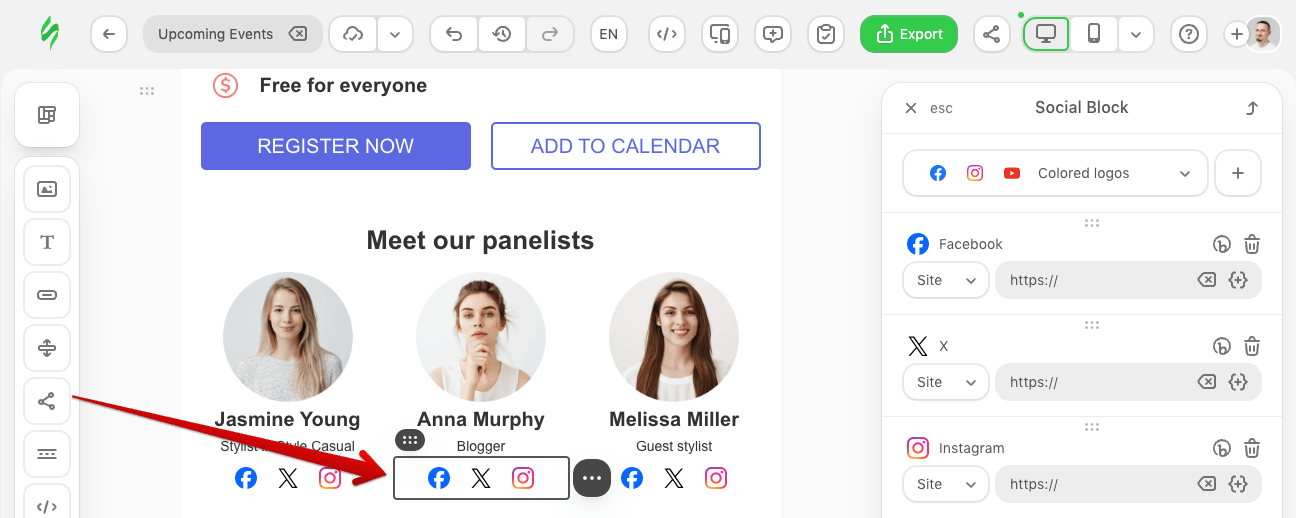
The block arrives with defaults, you'll replace them next -
Open the Code Editor
With the block selected, click the code icon (
</>) in the top toolbar. The Code Editor opens at the bottom and shows the HTML for that block only, not the whole template.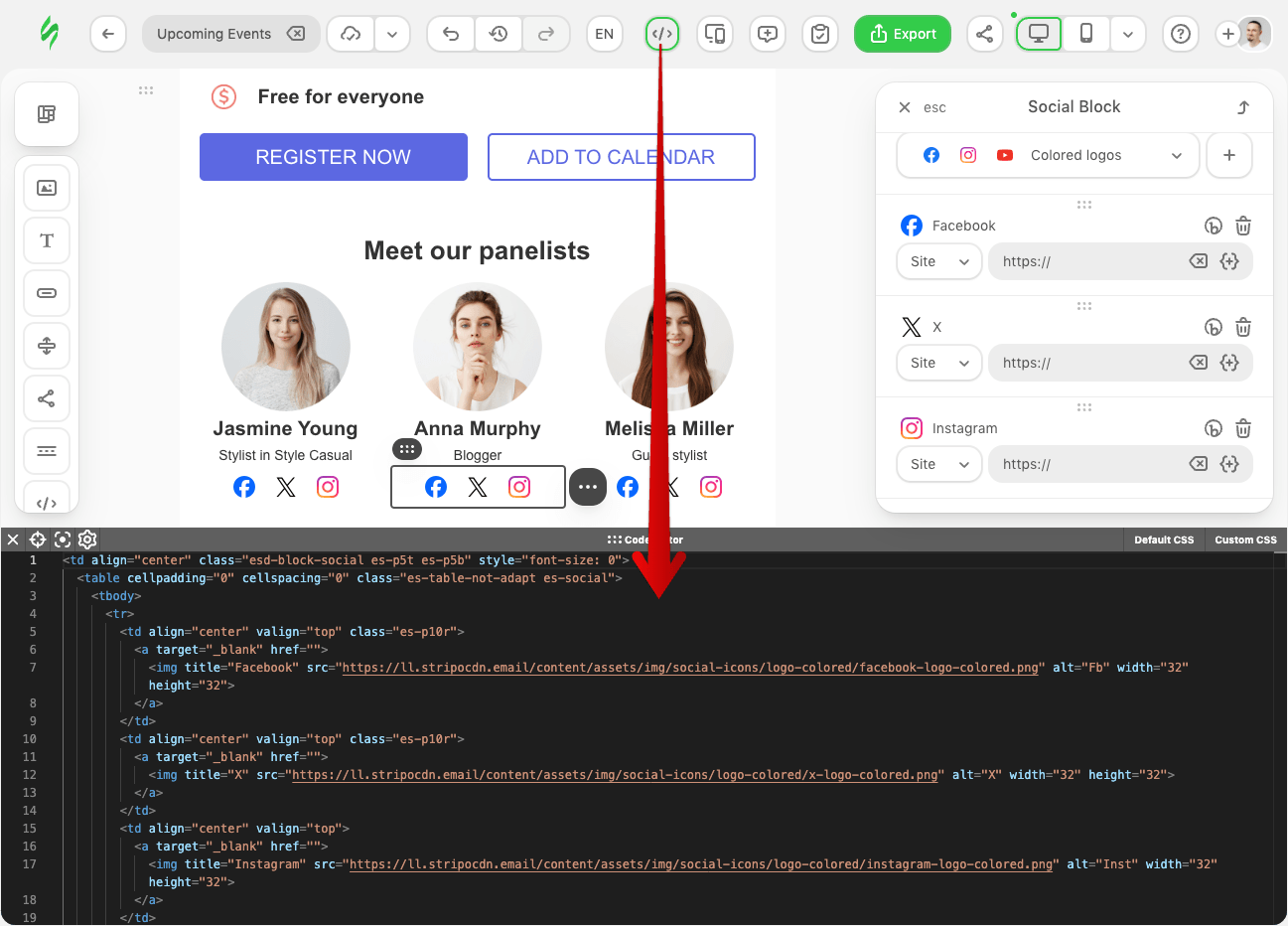
The Code Editor shows only the selected block's code -
Select the block's code and paste Footerico's HTML
Open Embed code in Footerico. Choose Email Editors & ESP, then Stripo, and copy the HTML. Back in the Code Editor, select everything for the block and paste the snippet over it. Replace each
[YOUR_PAGE_URL]with the matching profile URL.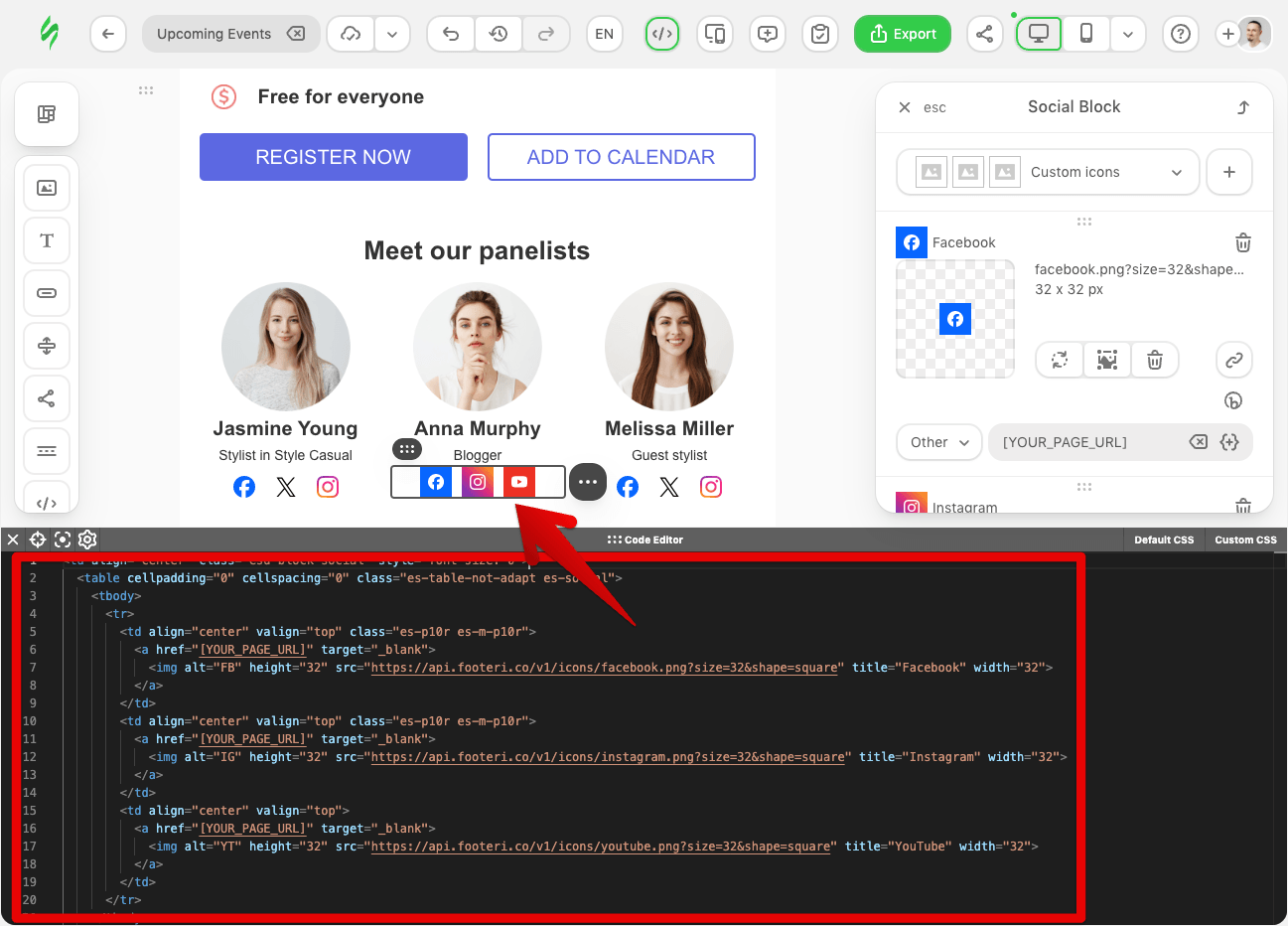
Paste Footerico's snippet over the block's existing code
Icon Picker writes that HTML for you. Every parameter behind the icon URLs is listed in the API reference.
Once you paste, Stripo re-reads the block and the Social Block panel switches to Custom icons, one entry per icon with its own thumbnail. From there you keep working the way you would with any Social block: resize, add another icon with the + button, or adjust spacing, all through Stripo's UI, no need to open the Code Editor again for small tweaks.
Built-in networks vs Footerico
Stripo ships 40+ built-in networks across 28 icon styles, matching Footerico's style count exactly. Two differences remain: Footerico's network catalog runs wider (75 brands vs Stripo's 40+), and its color isn't limited to presets, any hex code works, which Stripo's style picker doesn't offer yet.
Tips that save a resend
- Replace every
[YOUR_PAGE_URL]before you send. Empty placeholders break the click path. - Keep icon HTML
width/heightaligned with the size you chose in Icon Picker. The snippet already does this. - Save the block as a Stripo Synchronized Module if you reuse the same footer across templates: update the module once and every template using it updates with it.
- Send yourself a test and open it on desktop and mobile before it goes out.
FAQ
Will the icons show up in every email client?
Yes. They are plain PNG files in an <img> tag over HTTPS, the same pattern Stripo's own icons use. When a client blocks images, the alt text shows instead.
What exactly should I select before I paste?
Everything the Code Editor shows for that block, from the opening <td class="esd-block-social"> to its closing </td>. Footerico's Stripo snippet is built with that same wrapper, so pasting it whole keeps Stripo's own spacing rules intact.
Can I swap just one icon instead of all of them?
Yes. Open the Code Editor on the block, find that one icon's src attribute, and replace it with a single Footerico icon URL. The rest of Stripo's code stays untouched.
Do I need to host the icon files myself?
No. Each icon is served from the Footerico API. There is no upload step, no API key, and nothing to keep in your Stripo asset library.
If a brand changes its logo, do old templates update?
The file behind the URL is redrawn, so the current logo appears the next time the image loads. Style choices like size and shape live in the URL, so changing those means pasting a new snippet.
Style your icons, then paste them
Style the icons in Footerico, copy the Stripo embed, and paste it over the Social block's code in the Code Editor. You keep current brand marks and a catalog wider than Stripo ships by default.