Gmail's signature editor won't take raw HTML
Gmail's Signature block, under Settings, General, is a rich-text box, the same kind of editor used for composing a message. There is no code view. Paste HTML source into it and Gmail shows the angle brackets and tags as literal text, not a rendered result.
That rules out the usual Footerico route of pasting a code snippet into a template. The way through is pasting the rendered icons themselves, not their markup.
Copy rich content pastes the icons, not the code
The Signatures tab in Icon Picker has two buttons. Copy raw HTML gives you markup for editors that do take code, like Stripo's Code Editor. Copy rich content writes your rendered icons to your clipboard, the way a browser displays them, so pasting them into Gmail's signature box lands as icons, not markup.
Before you start
- Your icons styled and selected in the Icon Picker (brands + style), Signatures tab, Gmail picked from the Mail client dropdown
- Gmail open in a desktop browser, not the mobile app
If you don't have a signature yet
-
Open Settings
Click the gear icon in the top right of your inbox.
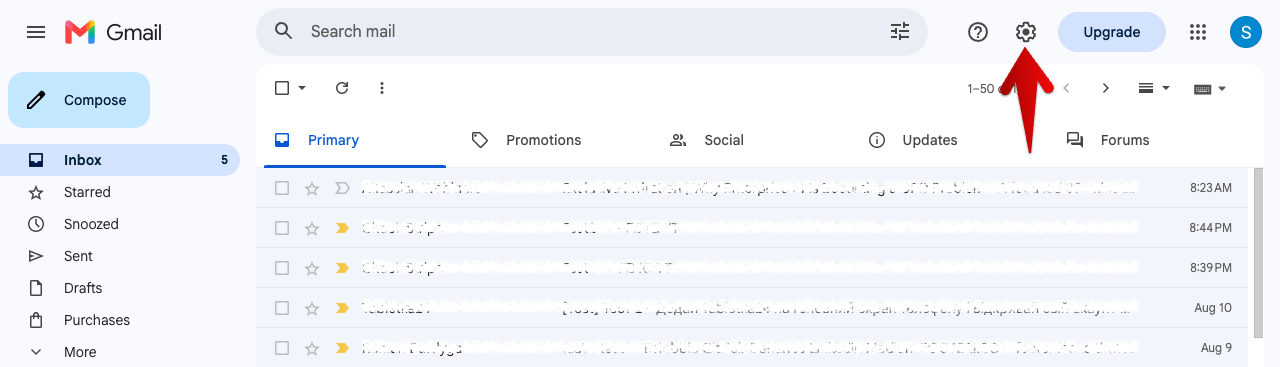
Click the gear icon -
Open all settings
In the panel that opens, click See all settings.
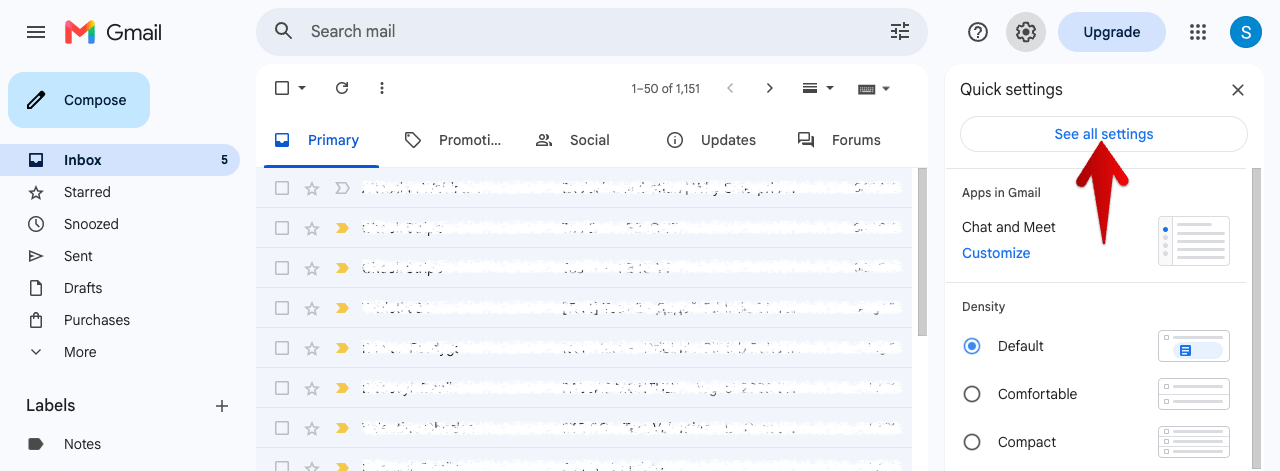
Click See all settings -
Scroll to Signature
On the General tab, scroll down to the Signature block.
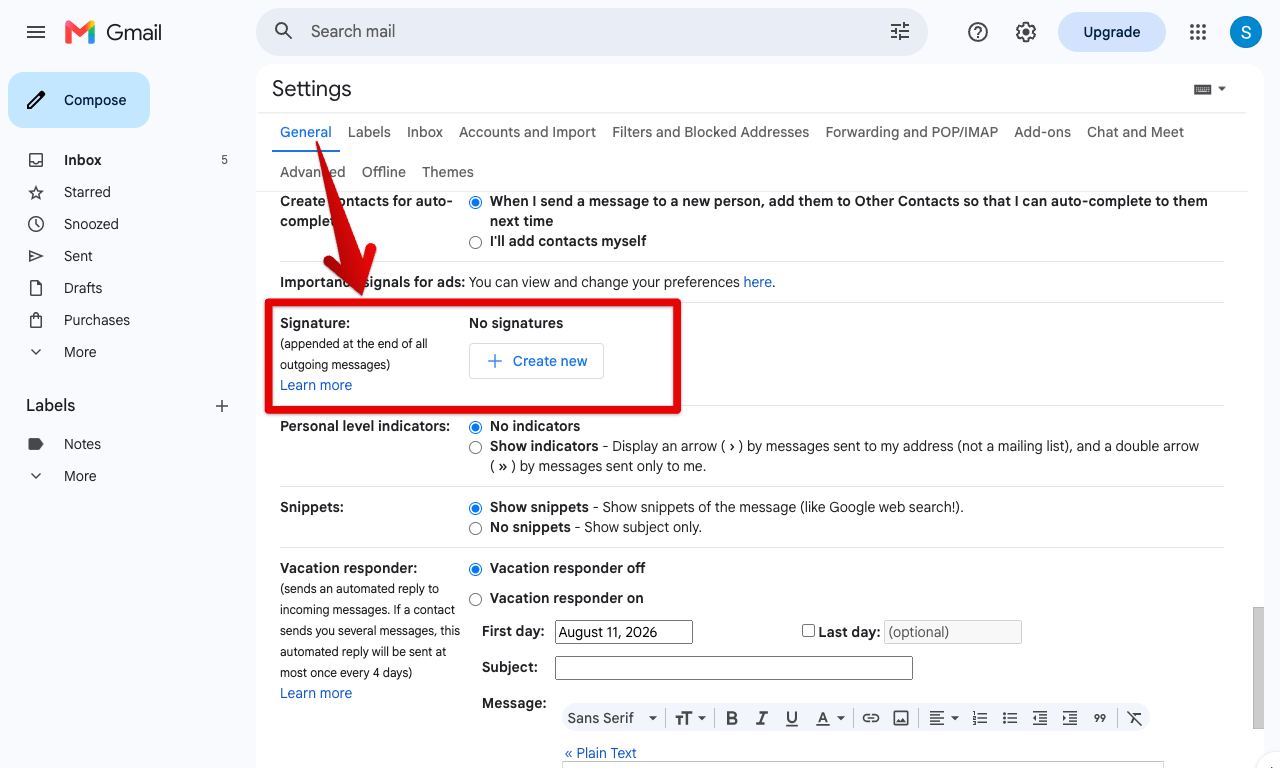
The Signature block, empty until you create one -
Create a new signature
Click + Create new and give it a name.
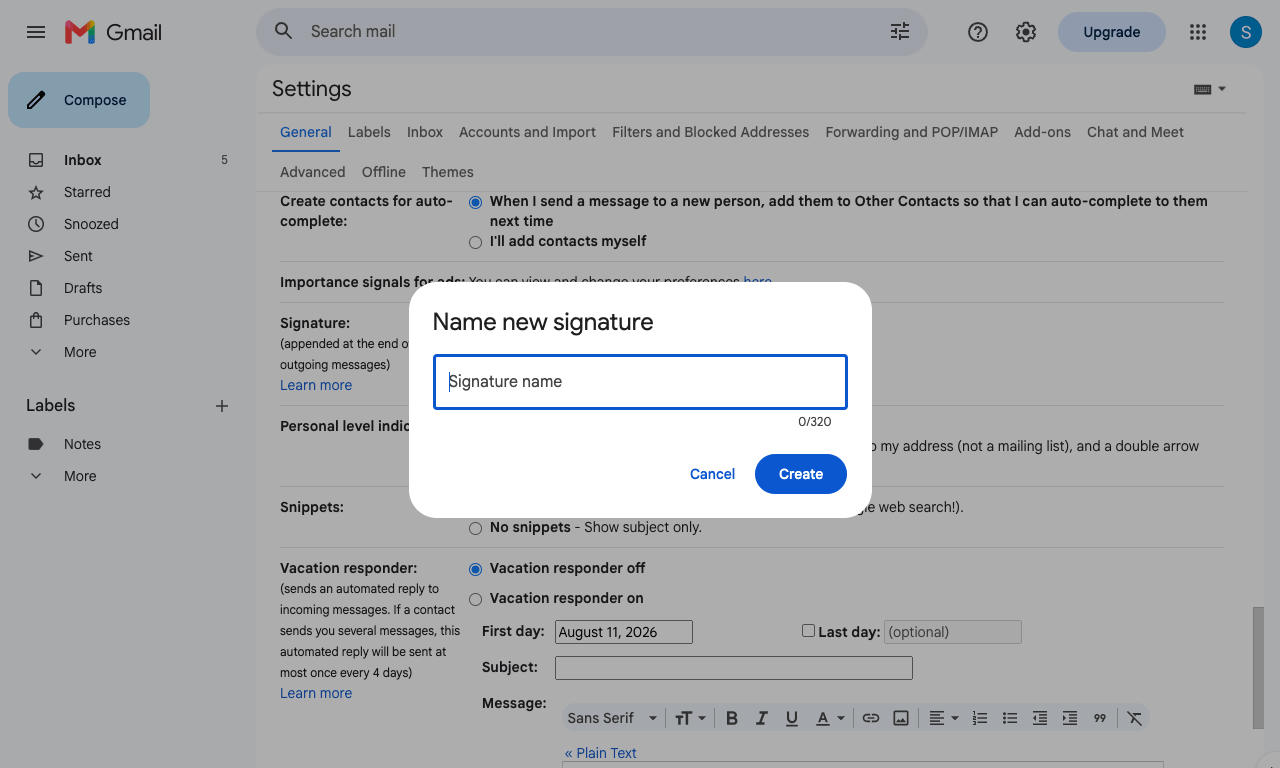
Name it whatever helps you find it later -
Paste your icons
In Footerico, click Copy rich content. Back in Gmail, click into the signature's text box and paste.
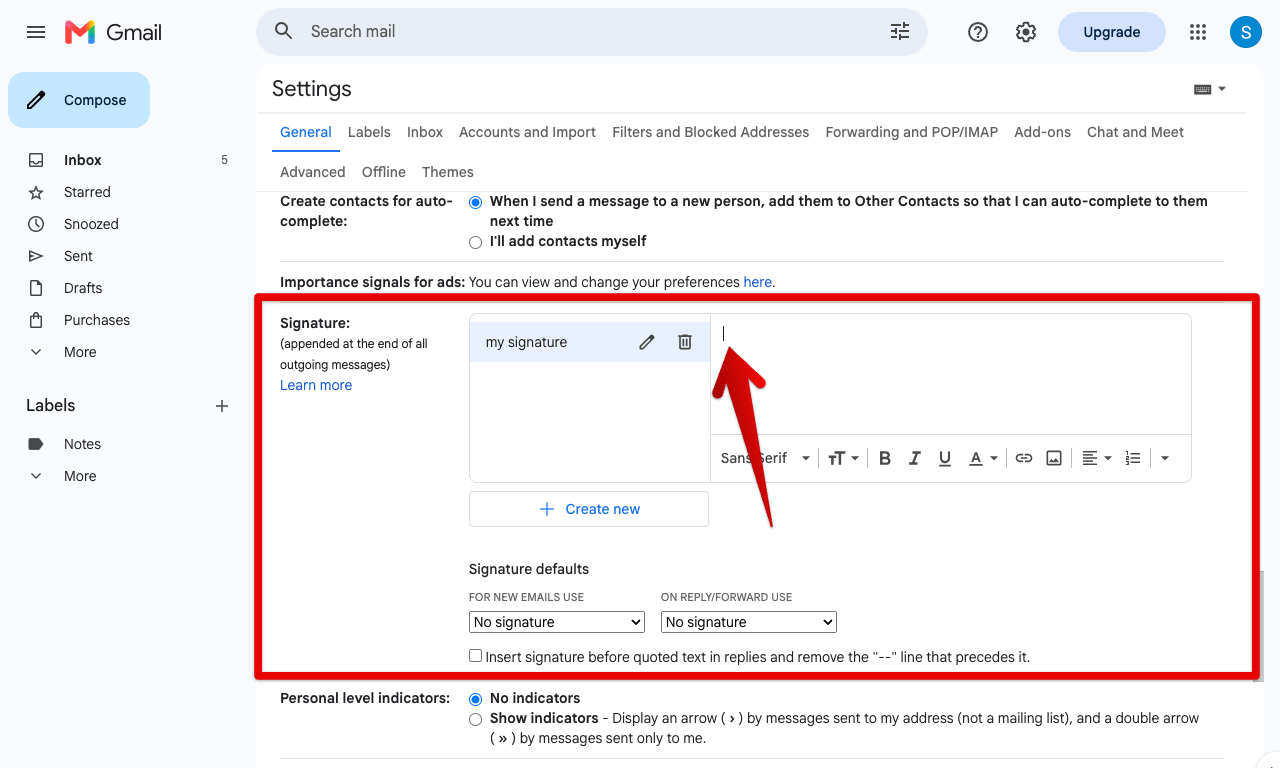
Click into the box, then paste -
Save
Scroll down and click Save Changes.
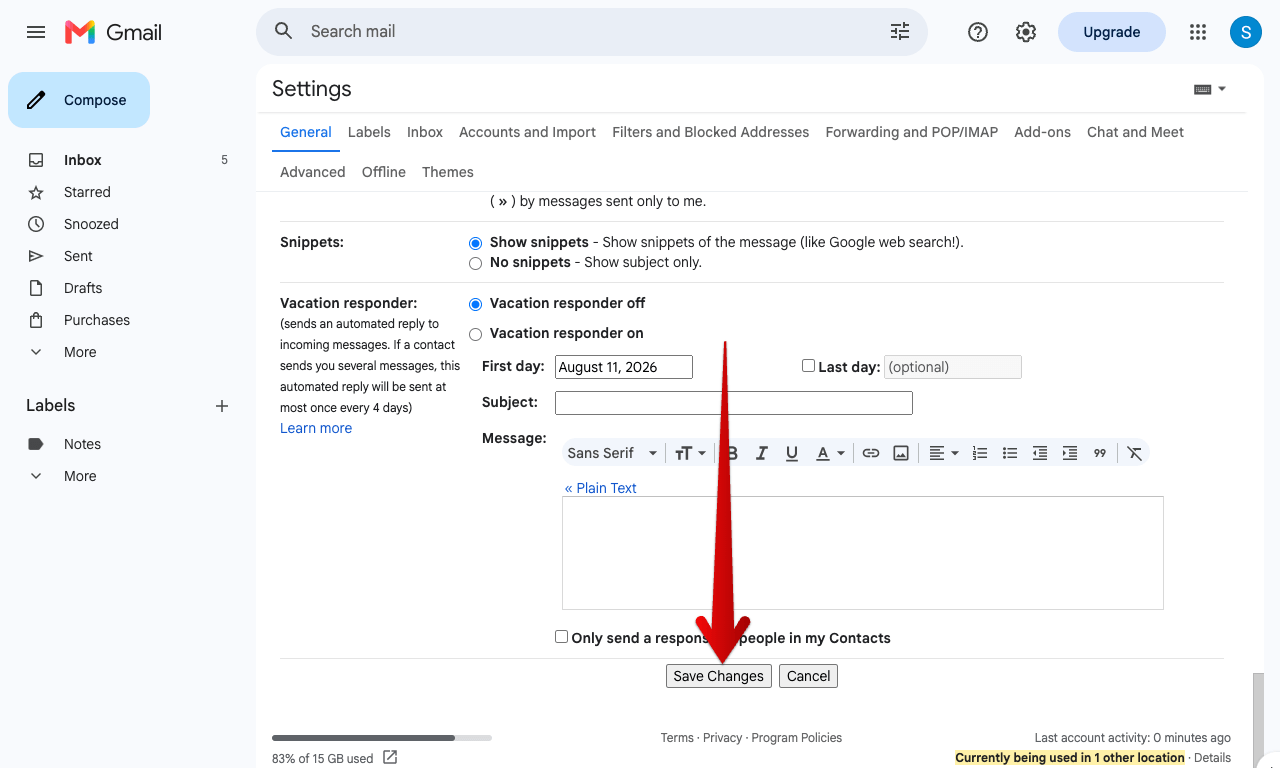
Save Changes, or the signature won't stick
If you already have a signature
In Footerico, click Copy rich content first, then switch to Gmail. If your existing signature already carries old icons, maybe built with a tool like Stripo's Signature Generator, replace them in place:
-
Open Settings
Click the gear icon in the top right of your inbox.
Click the gear icon -
Open all settings
In the panel that opens, click See all settings.
Click See all settings -
Scroll to Signature
On the General tab, scroll down to the Signature block.
The Signature block, on the General tab -
Select the old icons, delete, and paste
Click at the end of the line with the old icons, then drag-select back over them with your mouse until they're all highlighted. Press
Delete. With the cursor still blinking in that spot, paste (Ctrl/Cmd+V). The new icons land where the old ones were.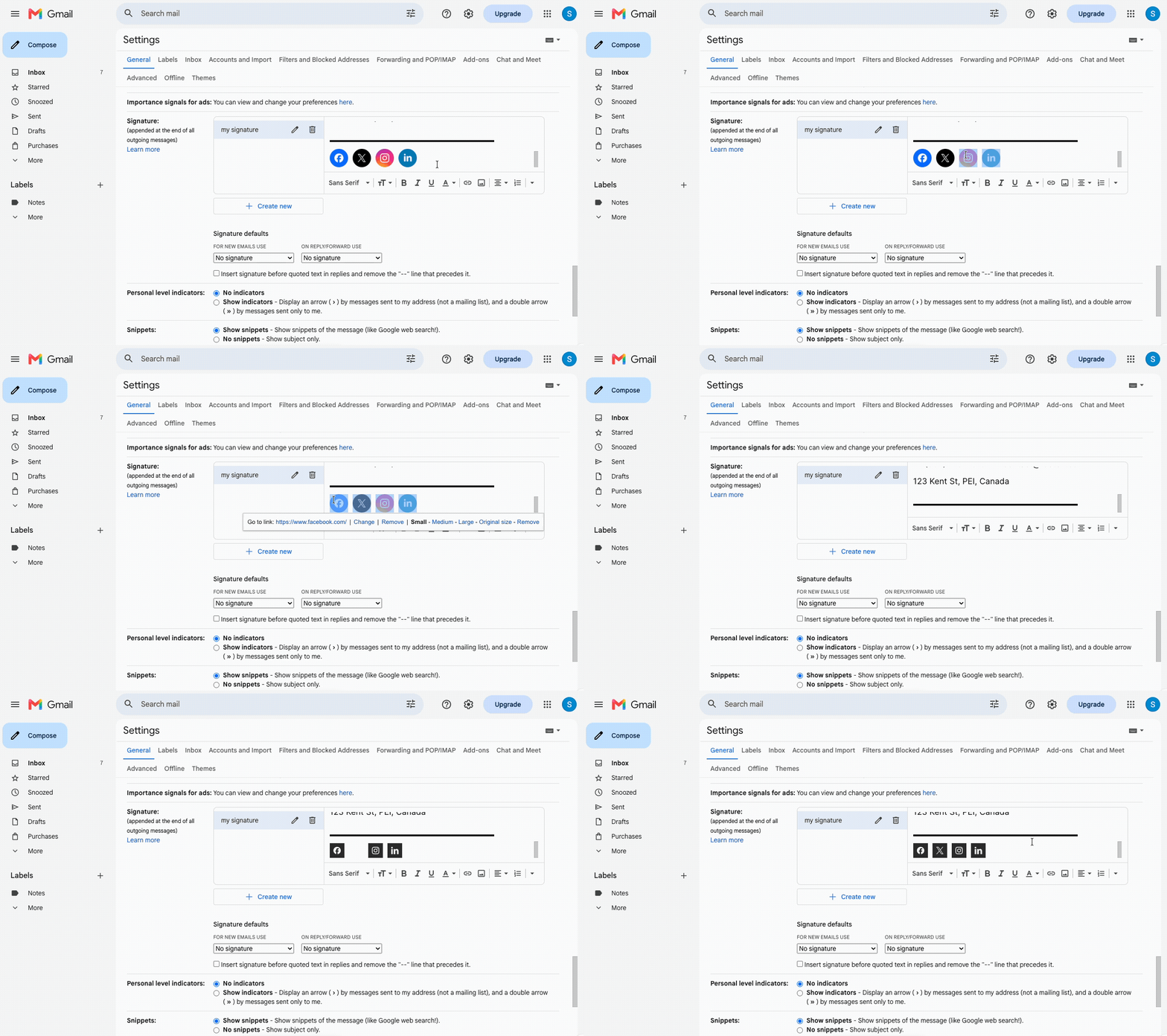
Select, delete, paste, the new icons land in place -
Save
Click Save Changes.
Save Changes, or the signature won't stick
Tips that save a resend
- Copy rich content again after you change size, shape, or color in Icon Picker. The clipboard doesn't update on its own.
- Gmail's mobile apps only support plain-text signatures, so set this up from a desktop browser.
- If icons or formatting don't show up, check that Gmail's editor is set to rich formatting, not Plain text mode.
- Send yourself a test email to see the finished signature.
FAQ
Why can't I just paste the HTML code?
Gmail's signature box is a rich-text editor with no code view. Pasting HTML source shows the tags as literal text instead of rendering them. Copy rich content works around that by copying the rendered icons themselves.
Does this work in the Gmail mobile app?
Not for setup. The Android and iOS apps only support plain-text signatures, so add or edit your signature from a desktop browser. Once saved, it still applies when you send from the app.
What if my current icons came from another tool?
Same fix either way: select the old icons, delete them, and paste the new ones. Tools like Stripo's Signature Generator produce a similar inline set of icons that selects and deletes the same way.
Do I need to host the icon files myself?
No. Each icon is served from the Footerico API. There is no upload step, no API key, and nothing to keep in your signature.
If a brand changes its logo, does my signature update?
The file behind the URL is redrawn, so the current logo appears the next time the image loads. Style choices like size and shape live in the URL, so changing those means copying your icons again.
Style your icons, then paste them
Style the icons in Footerico, click Copy rich content, and paste them straight into your Gmail signature. No code box, no upload, just the rendered icons landing where you clicked.